
Documentation / Aero Hangar
Aero Hangar documentation
The complete manual of the fleet register: keep the aircraft, their status, their counters and their documents with the free plugin, then follow maintenance, ownership, hours, costs and defects with Premium. This page follows version 2.0.0.
On this page
- Install and get started
- The words of the plugin
- The dashboard
- The fleet
- Add an aircraft
- The aircraft record
- The message to pilots
- The status of the day
- Counter readings
- On-board documents
- Reminders and settings
- Put the fleet on your site
- Users and permissions
- Activate Premium
- Due items and remaining potential
- The planner
- Workshop return
- Maintenance programmes
- The pace of each aircraft
- Ownership
- Importing Aerogest exports
- The report and cost per hour
- Expenses
- Defect reports
- For developers
- Frequently asked questions
Install and get started
The plugin installs like any WordPress plugin. It needs WordPress 6.3 or later and PHP 7.4 or later. It keeps everything in its own tables and touches neither your posts nor your pages. It calls no outside service to work: aircraft, readings and documents stay on your server.
The first five minutes
- Activate the plugin. An Aero Hangar menu appears in the left column, with an empty dashboard that offers to add the first aircraft.
- Open Fleet, click Add an aircraft, pick its type in the illustrated catalogue and type the registration.
- On the aircraft record, file the documents that carry a date, starting with the insurance certificate and the airworthiness review certificate (ARC).
- Record a first counter reading, the one the school already reads: airframe hours on the Hobbs, on the tachometer or in the journey log.
- Put the fleet grid on a page of your site, with the “Our aircraft” block or the
[aero_hangar]shortcode.
The free plugin is the whole register
No cap on aircraft, documents or readings, and no greyed-out feature. Premium adds maintenance, ownership, import, the report and defect reports; it takes nothing away from the free plugin and keeps everything the free plugin recorded.
The words of the plugin
Six words come back on every screen. Telling them apart once saves most of the hesitation later.
- The aircraft is a machine of the fleet: one line of the register, with its identity, its documents and its history. Airplane, helicopter or microlight.
- The status is declared by a person, on a date, with a reason: in service, unavailable with a return date, grounded with no date, or archived. The journal keeps every change, and nothing overwrites it.
- The reading is the value of a counter on a given day. It carries what it counts (airframe hours, engine hours, cycles, landings) and the instrument it is read on (Hobbs, tachometer, block, journey log). That pair makes a series.
- The on-board document is a dated paper: certificate of registration, ARC, insurance certificate, station licence, weighing report and the others.
- The due item (Premium) is an inspection or a limit ahead, in hours, cycles, landings or on a date, with its tolerance.
- The limit (Premium) is the value or the date a due item falls on. A “100 h or one year” inspection has two limits: the first one reached wins.
The dashboard
This is the morning screen. It opens on what needs a decision today, and not on the whole register, which is the Fleet tab.
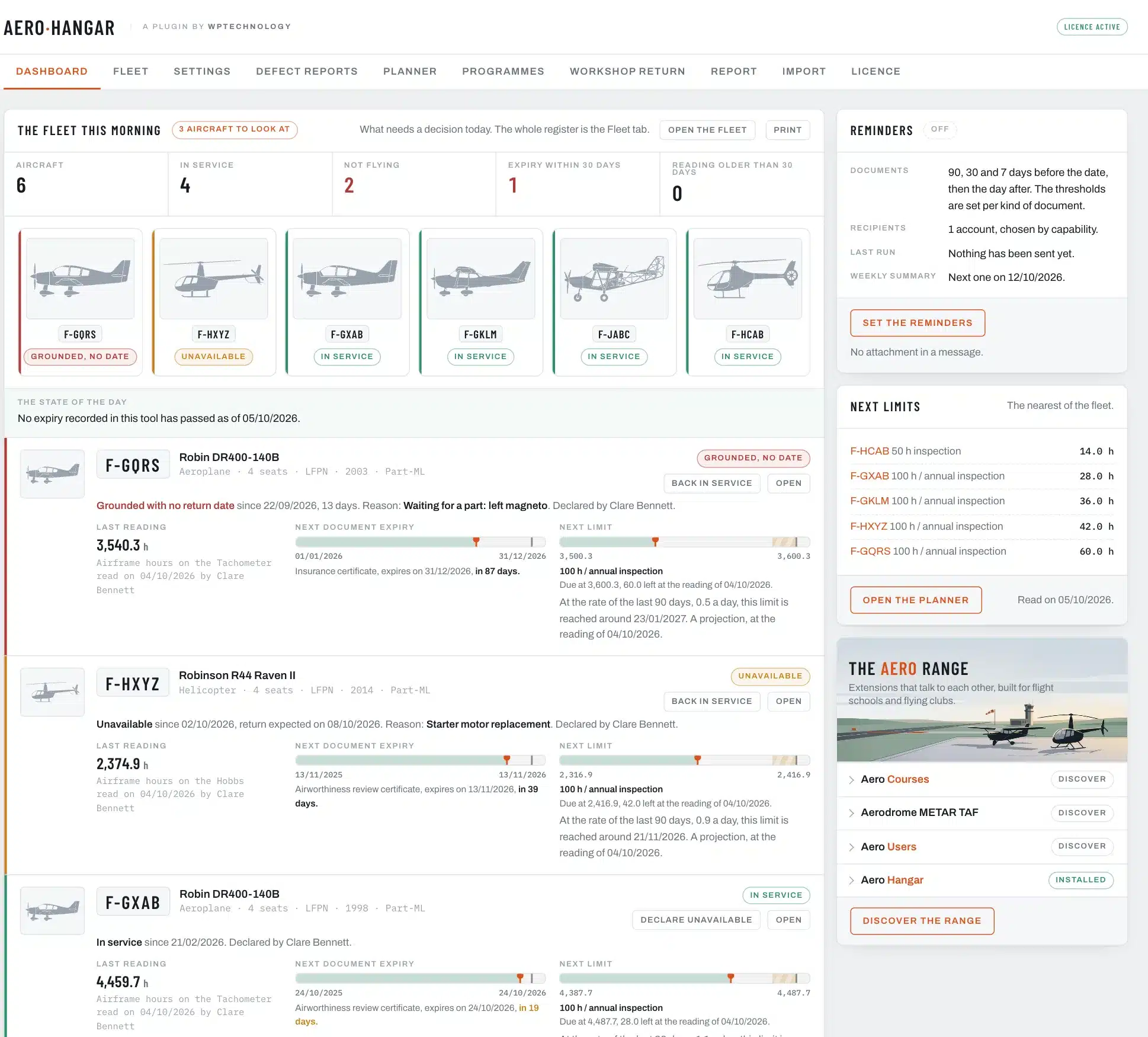
- Five figures: the aircraft, those in service, those grounded, the due items within thirty days and the readings older than thirty days.
- The tiles: each aircraft with its silhouette or photo and the colour of its status, green, orange or red.
- The state of the day: one sentence that says what has passed, or that nothing has.
- One line per aircraft to look at, most urgent first: its status and reason, its last reading, its next document expiry on a band, and its next limit (Premium). The Declare unavailable or Back in service and Open buttons sit at the end of each line.
- On the right: the state of the reminders, the next limits of the fleet (Premium) and the other plugins of the range.
The Print button puts the page on one sheet, for the notice board of the hangar.
The fleet
The Fleet tab is the whole register: one line per aircraft, with its type, its status and since when, its last reading, its next document expiry and, with Premium, its next limit.
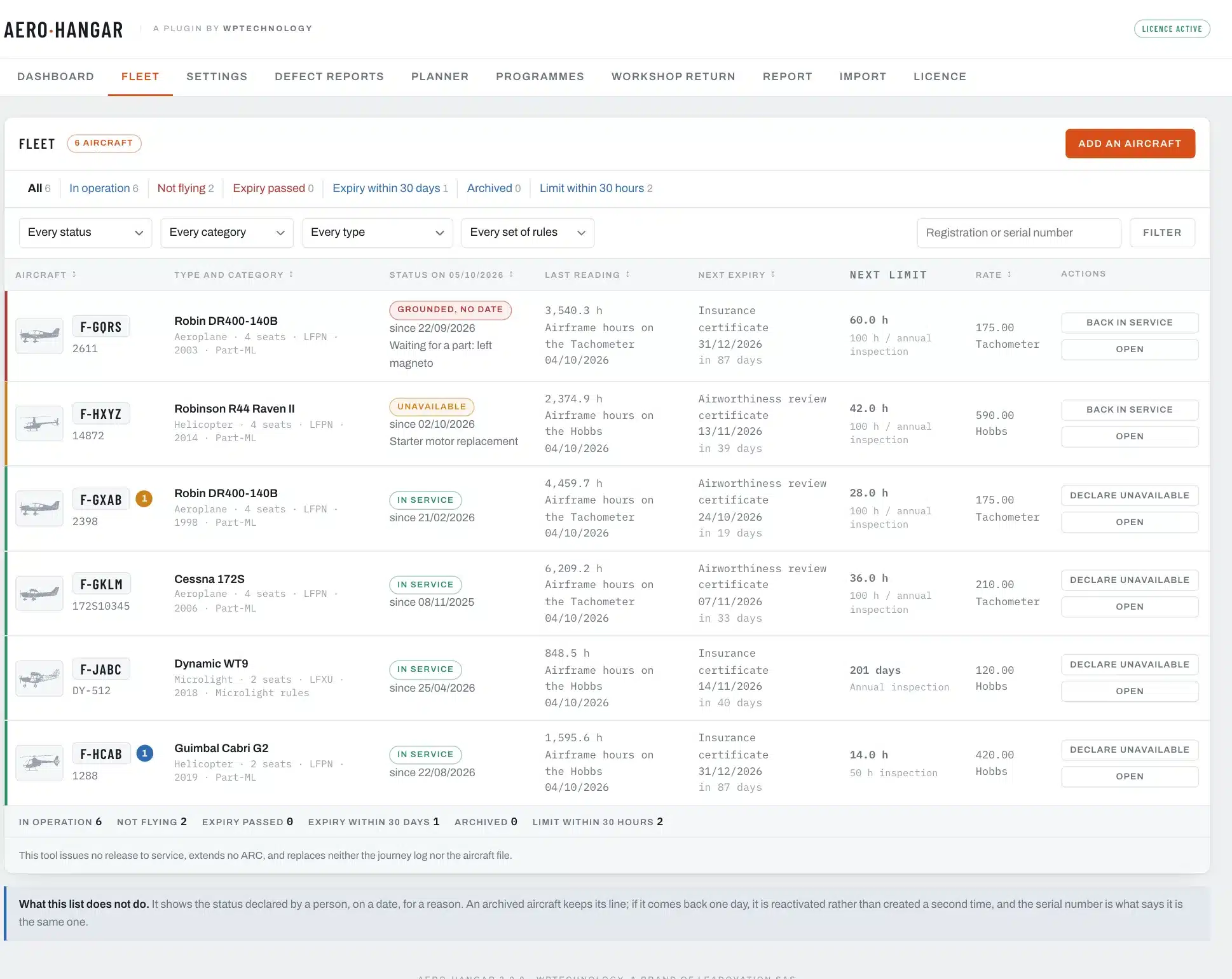
- Quick views: all, in operation, grounded, expiry passed, expiry within thirty days, archived.
- Filters: status, category, type and rules, and a search by registration or serial number.
- The foot of the list counts the view shown.
An archived aircraft leaves the default list and the public grid. It stays readable in the “archived” view, with its whole history.
Add an aircraft
The Add an aircraft button opens an illustrated catalogue of 29 common types, helicopters, airplanes and microlights. Picking the type fills in the manufacturer, the model, the category, the seats and the fuel; only the registration is left to type.
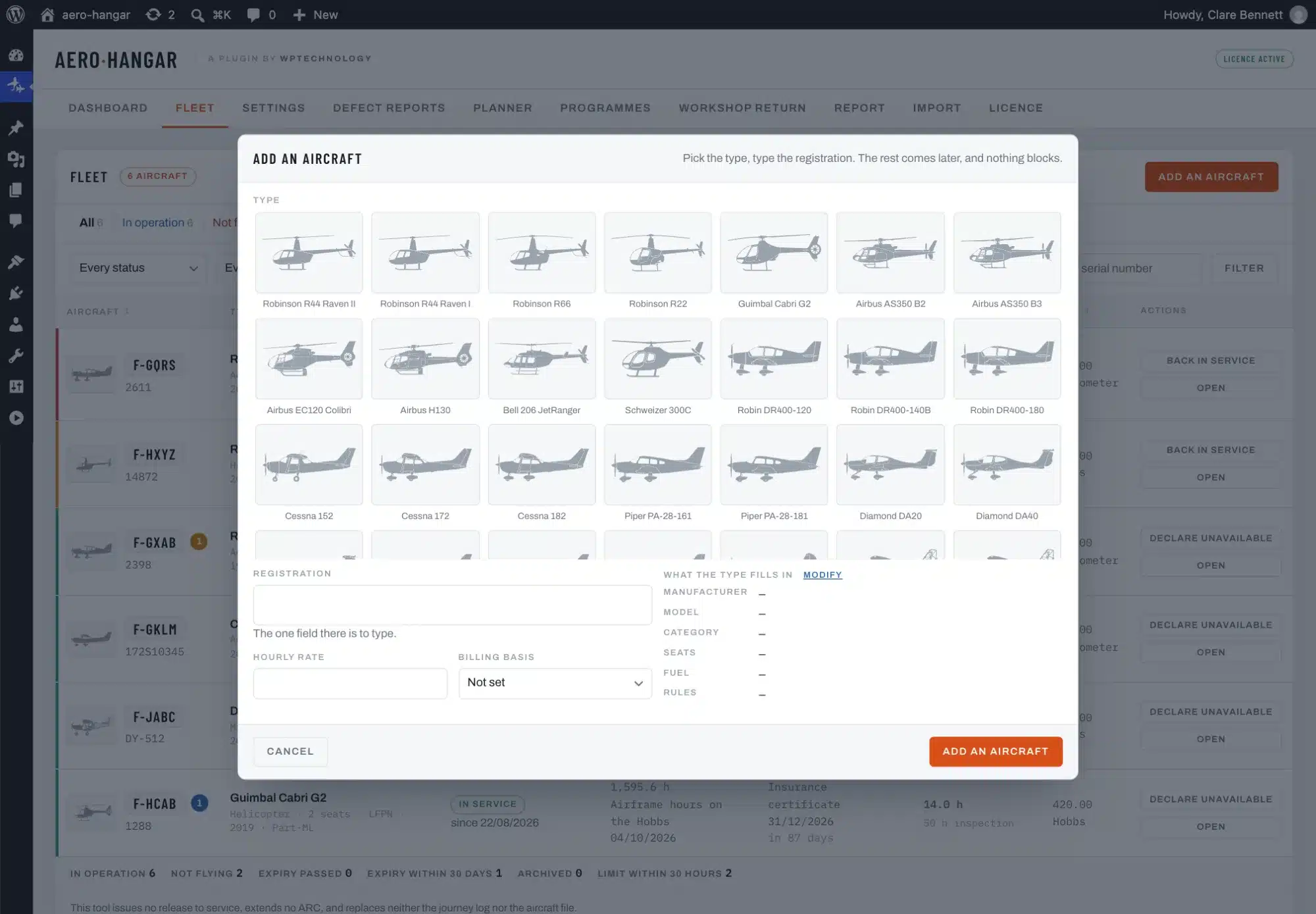
For a type the catalogue does not hold, choose “Other”: every field is typed by hand. The registration is unique in the register; the serial number says it is the same aircraft if its registration changes.
The aircraft record
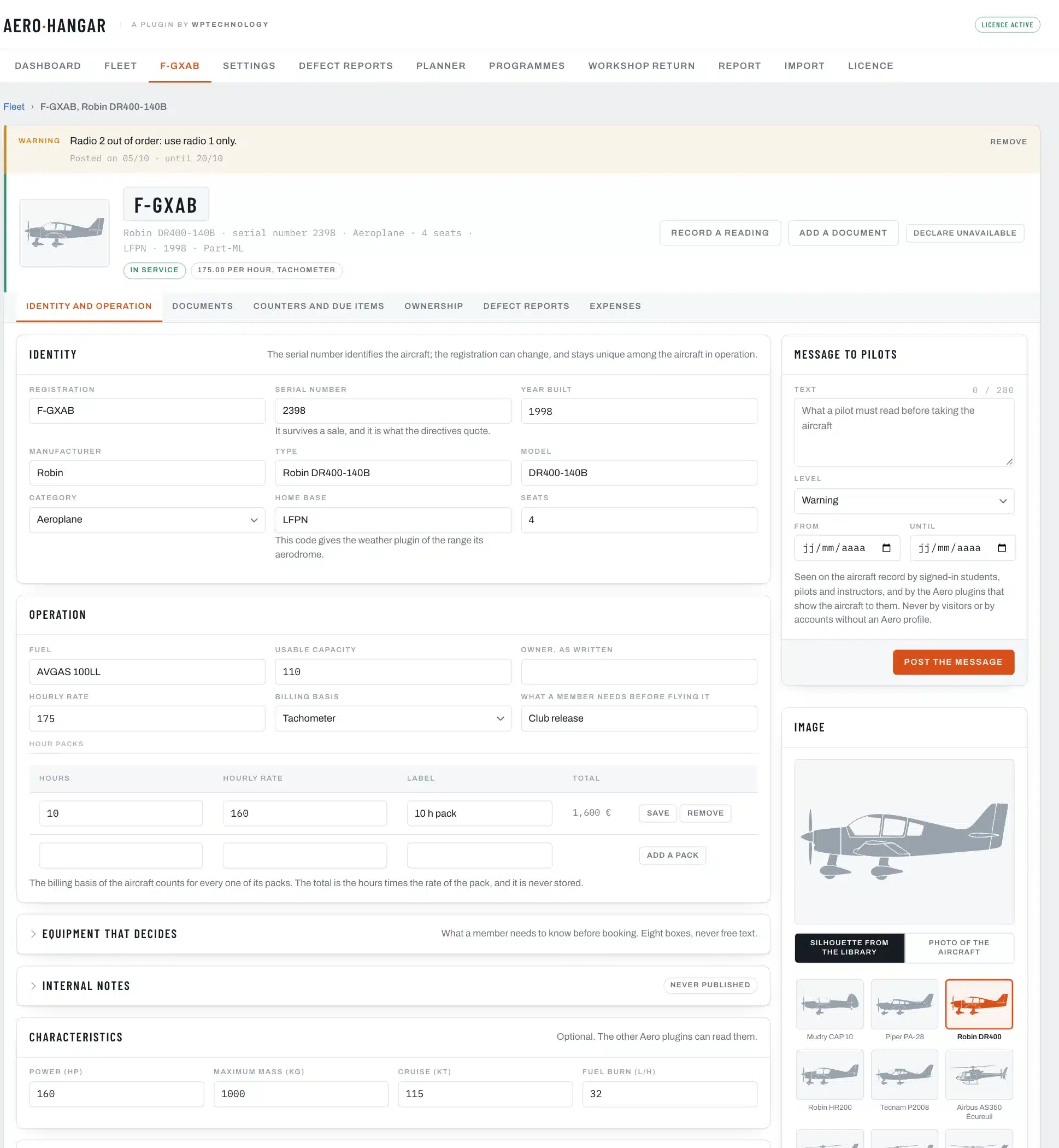
The record reads by tabs. Its header recalls the registration, the type, the status and the rate, with the most frequent actions: record a reading, add a document, declare the aircraft unavailable.
Identity and operation
- Identity: registration, former registrations, serial number, manufacturer, model, year built, category and rules (Part-ML, Part-M, microlight, aerial work).
- Operation: home base, fuel and capacity, seats, what is asked of a pilot (“club release, 3 landings within 90 days”).
- The rate: the hourly price and how it is counted (Hobbs, tachometer, block or journey log), and the hour packs. Ten hours sold in advance cost less than the single hour: each pack carries its own rate, and its total is worked out every time it is read.
- Characteristics: power, maximum take-off mass, cruise speed and fuel burn, shown on the public page.
- The equipment that decides: mode S, ADS-B, 8.33 radio, GPS, autopilot, retractable gear, floats, cargo hook.
- The image: one silhouette out of 24, picked from the type, or a photograph of your own aircraft, which takes precedence on every screen.
- Internal notes, never published.
- The external reference: the identifier of the aircraft in the software the school already uses, so that an import finds it.
The other tabs are described below: Documents, Counters and due items, then, with Premium and as soon as they have content, Ownership, Defect reports and Expenses.
The message to pilots
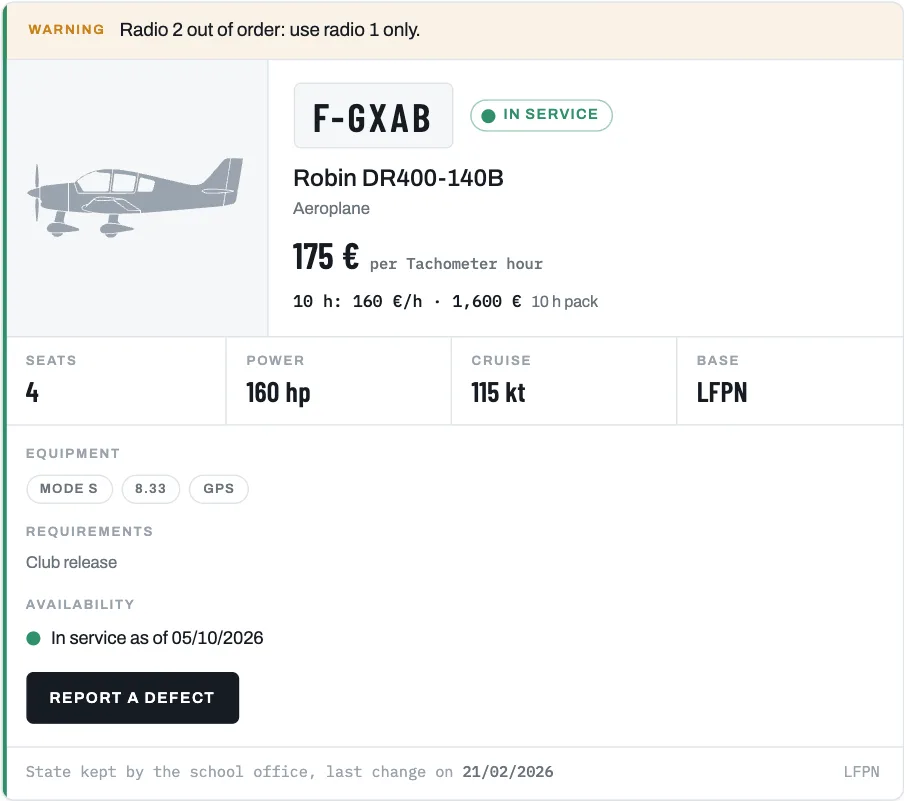
Each aircraft can carry a short message to read before departure: “radio 2 out of order”, “left tank only”. It is set in the Message to pilots card of the Identity tab, as information or warning, with an optional start date and end date. After its end date it disappears on its own.
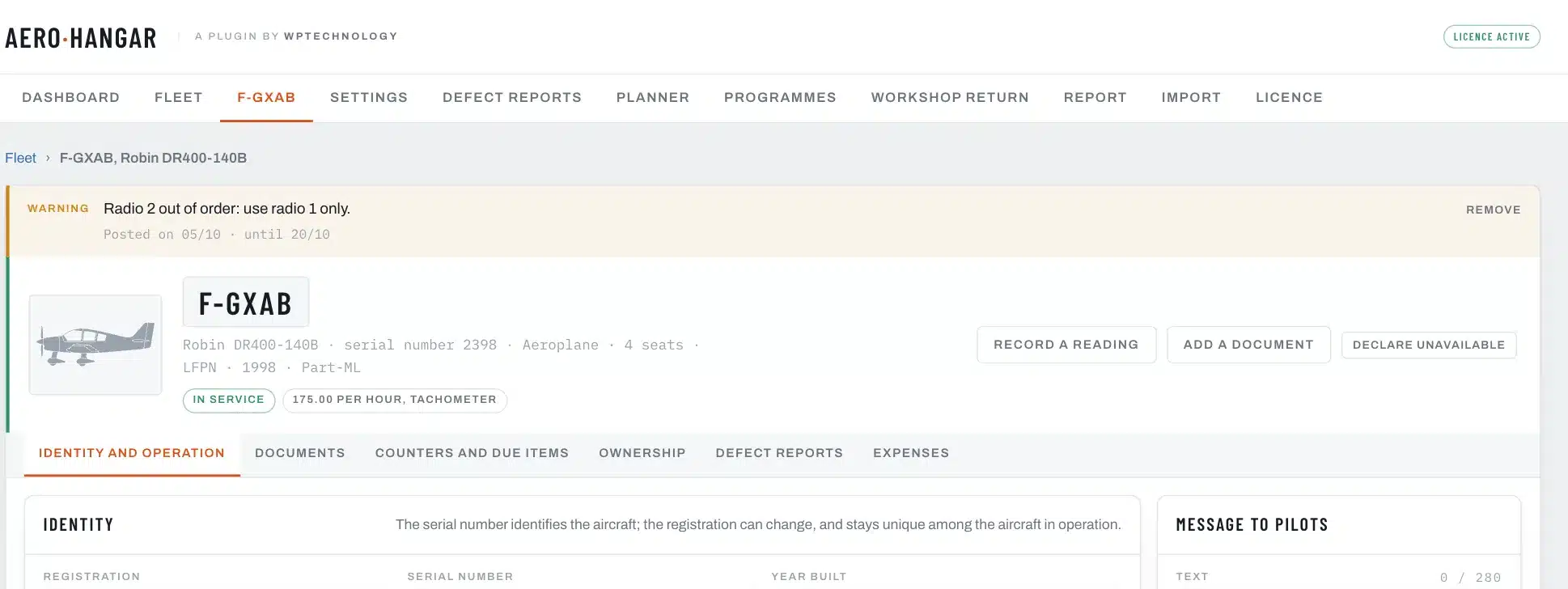
It shows at the top of the record in the admin, and on the public page of the aircraft to signed-in accounts with an Aero profile only: student, pilot, instructor, examiner. A visitor, a subscriber or a customer of the site does not see it, and the fleet grid never shows it.
The status of the day
The morning question is “can I take F-GKLM on Saturday?”. The register answers it with the status, and the journal says who declared it and when.
- In service: the aircraft flies.
- Unavailable, with an announced return date: the public page says when it comes back.
- Grounded, no date: the return is not known.
- Archived: the aircraft has left the fleet.
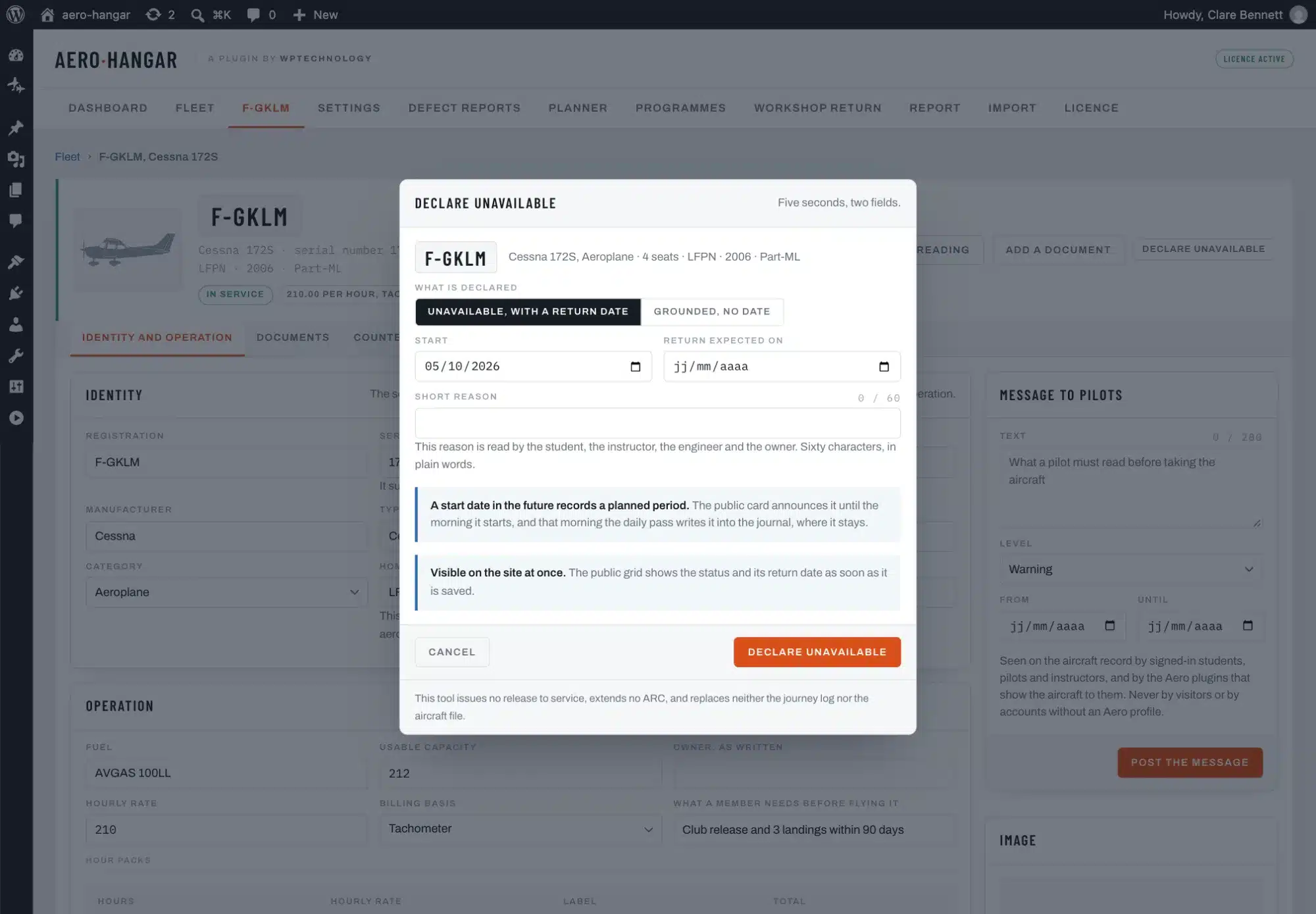
Declare unavailable sits at the end of every line of the dashboard and of the fleet, and at the top of every record. The reason shows at once on the public grid. A start date ahead records a planned unavailability (Premium): the aircraft stays in service until the day comes.
On its return, Back in service puts the aircraft back in service on the date it actually came back. The unavailability closes on that date, and the history keeps both. A sold aircraft is archived from the Archive card of the Identity tab; if it comes back, it is reactivated: its line, its history and its serial number carry on.
Counter readings
A reading is entered with Record a reading: the counter, the instrument, the value and the day. The pair of the last reading is offered again. Two different pairs are two series, and two instruments are never added up together by mistake.
The Counters and due items tab keeps the whole history of readings, with who entered them. A reading never overwrites the previous one. When a period does not carry two of them, the plugin says so plainly, for instance “no reading before 12/03”.
A counter replaced
After an instrument or an engine is replaced, the “A new counter on this instrument” button sets the new series in three writes: the installation, the starting reading and the carry-over of the due items. Hours never become negative.
On-board documents
The Documents tab holds eleven kinds of papers: certificate of registration, certificate of airworthiness, ARC, noise certificate, aircraft station licence, insurance certificate, weighing report, flight manual, maintenance programme, microlight identification card and other document.
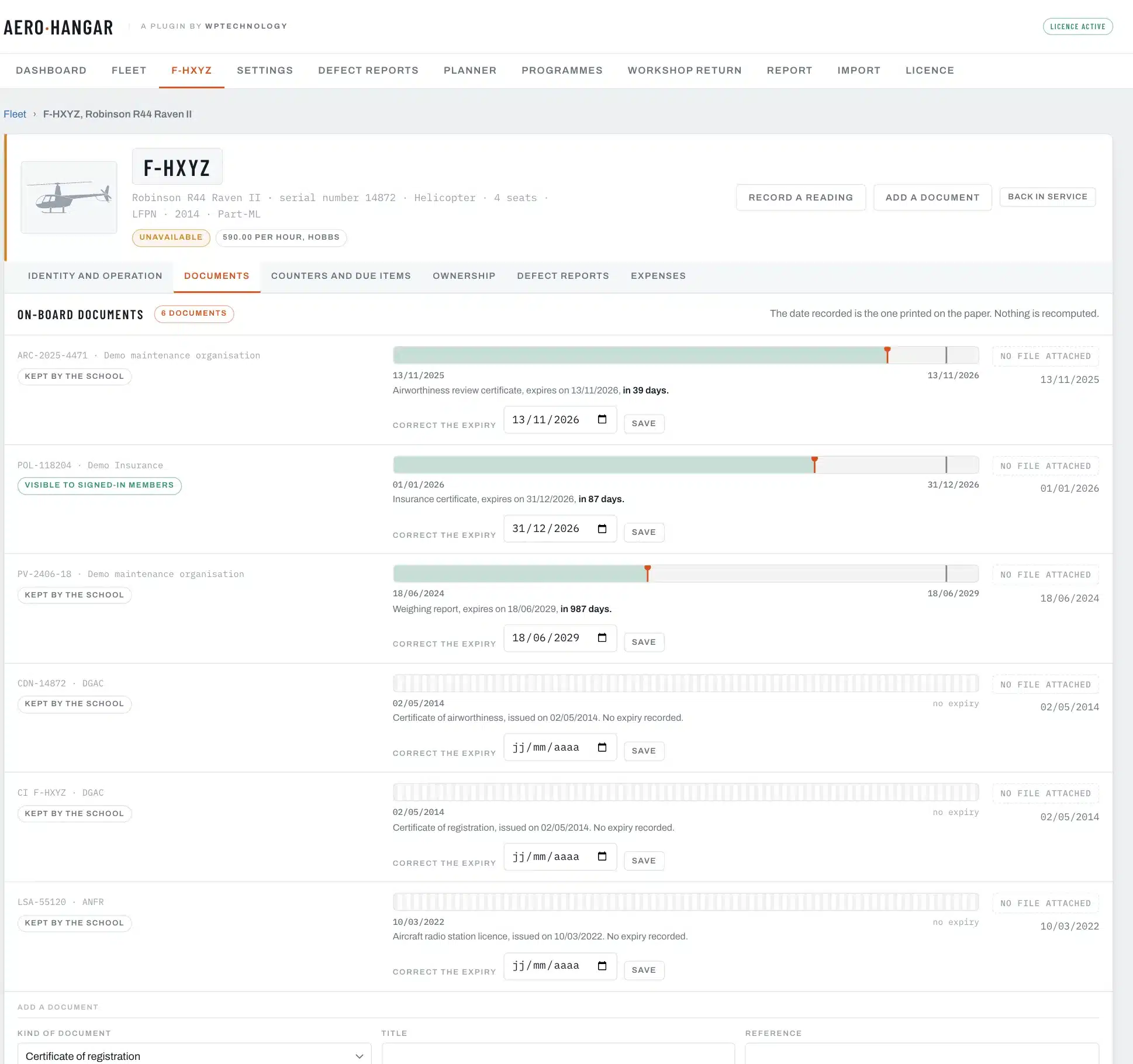
- Each paper carries its reference, its issuer, its issue date and, where it applies, its expiry date.
- The expiry date is corrected on the spot, without filing the paper again, the day the workshop says the ARC has been renewed.
- The file (PDF, JPEG or PNG) is kept outside the media library, in a closed folder, and served by the plugin alone.
- Each paper carries a visibility: kept by the school, visible to signed-in members, or visible to everyone. A refused request is written to a log the school can read.
Reminders and settings
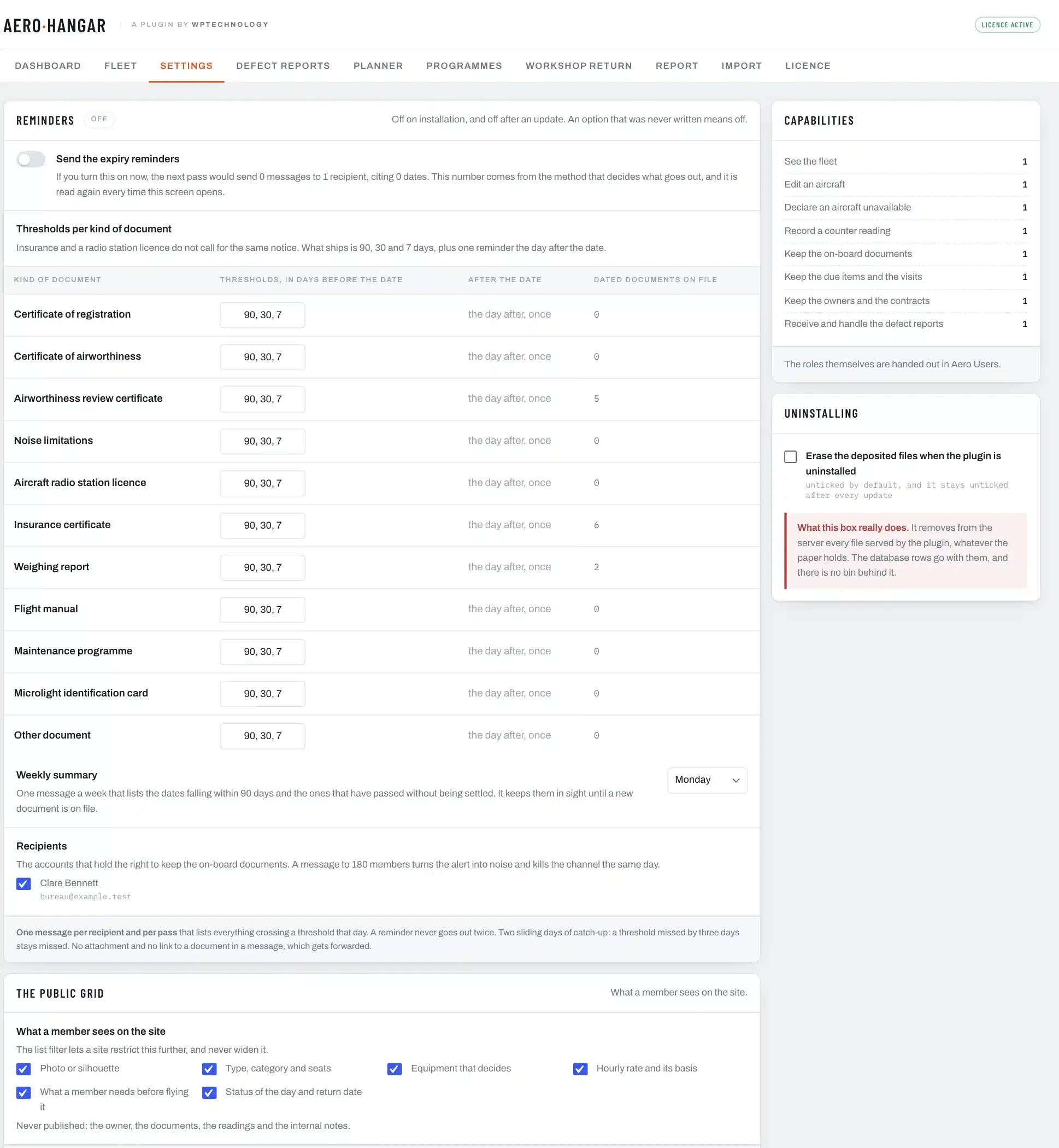
The Settings tab sets the reminders, what the public grid shows and whether uninstalling erases the data.
Reminders
- They are off when installed. Before you switch them on, the screen says how many messages the next pass would send, to whom, and for how many dates.
- Thresholds are set per kind of document: 90, 30 and 7 days before the date at first, then one reminder the day after.
- One message per recipient and per pass, listing everything that crossed a threshold that day, and never twice for the same date.
- The weekly summary, on the day you choose, lists the dates within 90 days and those that passed without being settled, until a new document is on file.
- The recipients are chosen among the accounts that keep the on-board documents. No message carries an attachment or a link to a document.
The public grid and uninstalling
Six boxes choose what a member sees on the site: the photo or silhouette, the type and seats, the equipment, the rate, what is asked of a pilot and the status of the day. Never published: the owner, the documents, the readings and the internal notes.
The Uninstalling card carries a single box, unticked at first and after every update: erase all the data of Aero Hangar when the plugin is uninstalled: the register, the counters and their history, the deposited documents, the other records and the settings, with no bin. Unticked, everything stays, and reinstalling finds it all again. The Capabilities card counts the accounts that hold each permission.
Put the fleet on your site
Two blocks and three shortcodes put the fleet on your pages, light or dark to suit your theme. What they show is the state on the day the page is read.
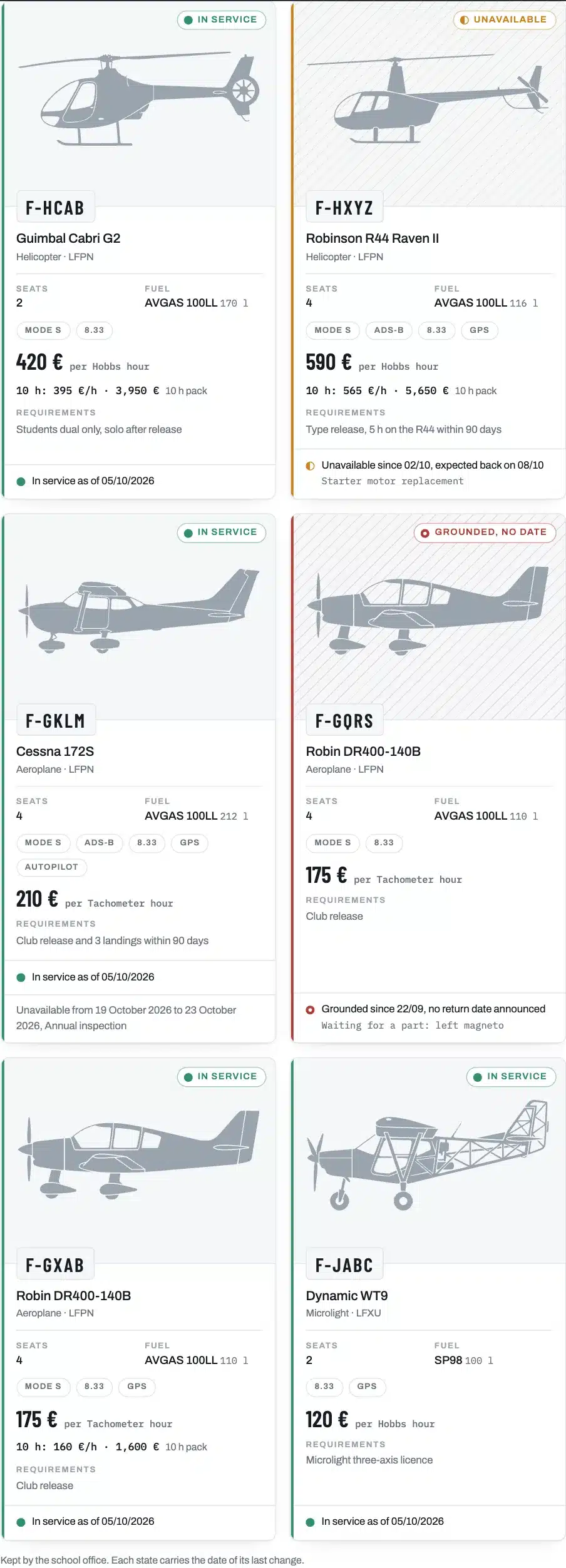
- The “Our aircraft” block or
[aero_hangar]: the grid. Thecategoryattribute narrows it tohelicopter,airplaneorulm. - The “One aircraft” block or
[aero_hangar_aircraft immat="F-GKLM"]: the page of one aircraft, with its identity, characteristics, equipment, requirements and availability. [aero_hangar_rate immat="F-GKLM" pack="10"]: a rate written in the middle of a sentence, here the ten-hour pack.
Users and permissions
The plugin declares five permissions, shared with the other plugins of the range: see the fleet, edit an aircraft, declare an aircraft unavailable, record a counter reading and keep the on-board documents. They are ticked role by role; the administrator gets them all on activation. When Aero Users is installed alongside, the two keep a single list of roles.
Premium adds three permissions: keep the due items and the visits, keep the owners and the contracts, receive and handle the defect reports.
Premium
The chapters that follow describe what Premium adds to the register. Premium installs over the free plugin and keeps everything it recorded.
Activate Premium
After purchase, download the Premium archive from your account, install it, then paste your key in the Licence tab. The screen says whether the licence is active, until when, and how many sites it covers.
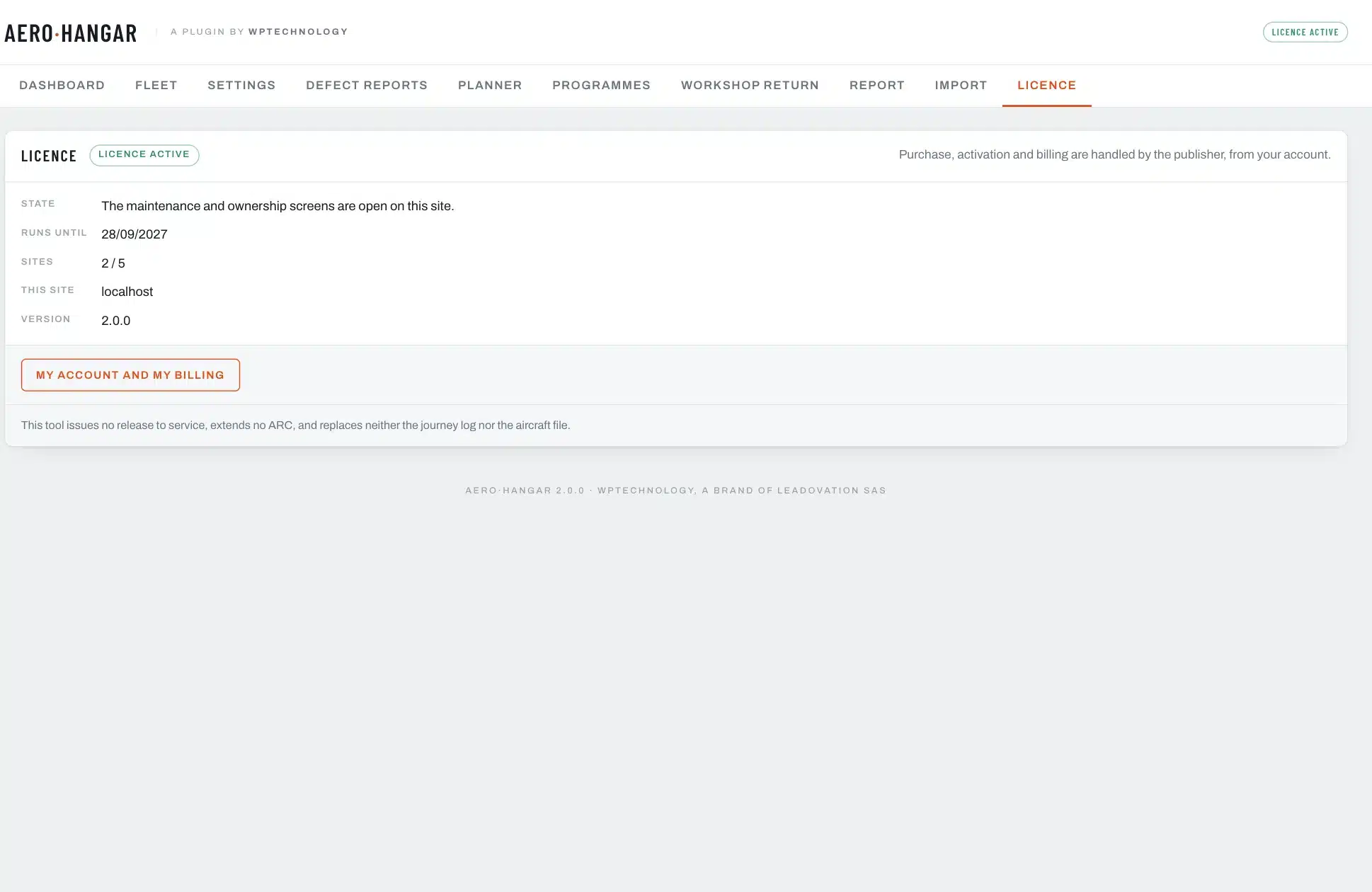
If the email address is already that of a store account, a confirmation is sent by email: the licence becomes active with the click in that message. On expiry, the Premium screens close until renewal; the data stays in the database, and the free register keeps working.
Due items and remaining potential
In the Counters and due items tab, each due item carries one or two limits: a counter value, a date, or both. Under each, a band shows today’s position, the remaining potential and the tolerance.
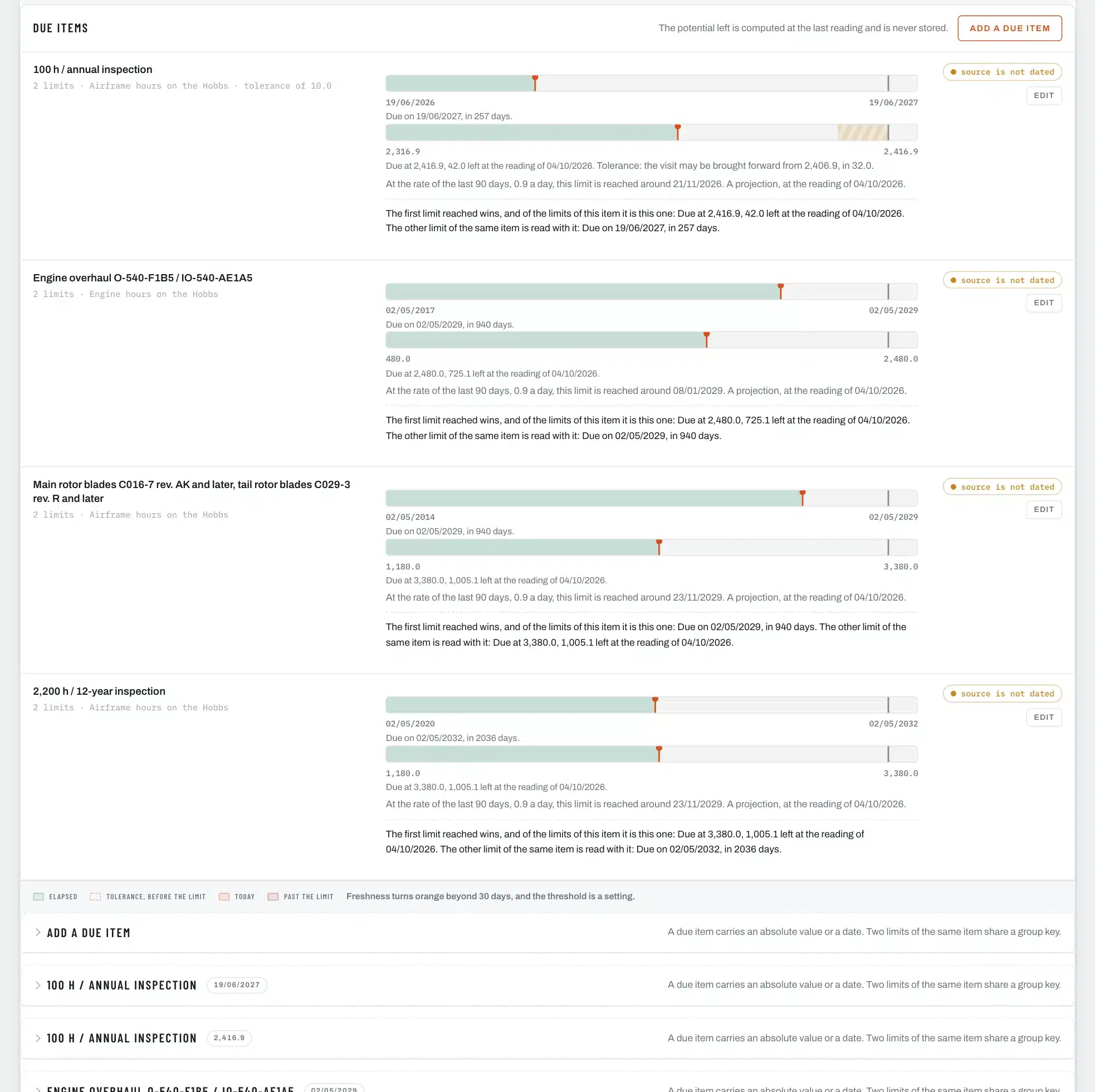
- Add a due item: a label, a kind (airframe hours, engine hours, cycles, landings or calendar), a limit, a tolerance and an interval. Two limits of one inspection share a group key.
- The projection: at the measured pace of the aircraft, the plugin says around which day a limit in hours will be reached. It is a projection, which moves with every flight and replaces no date.
- Freshness: a due item whose source has not been checked for a long time carries a badge.
- Counter equivalence: when the programme counts engine hours and the school reads the Hobbs, an equivalence says how to go from one to the other.
The planner
The Planner tab shows the whole fleet on a timeline of 30 days, 90 days or 12 months: dated papers, the limits of the maintenance programme, projections at the pace of each aircraft, planned unavailability and workshop returns.
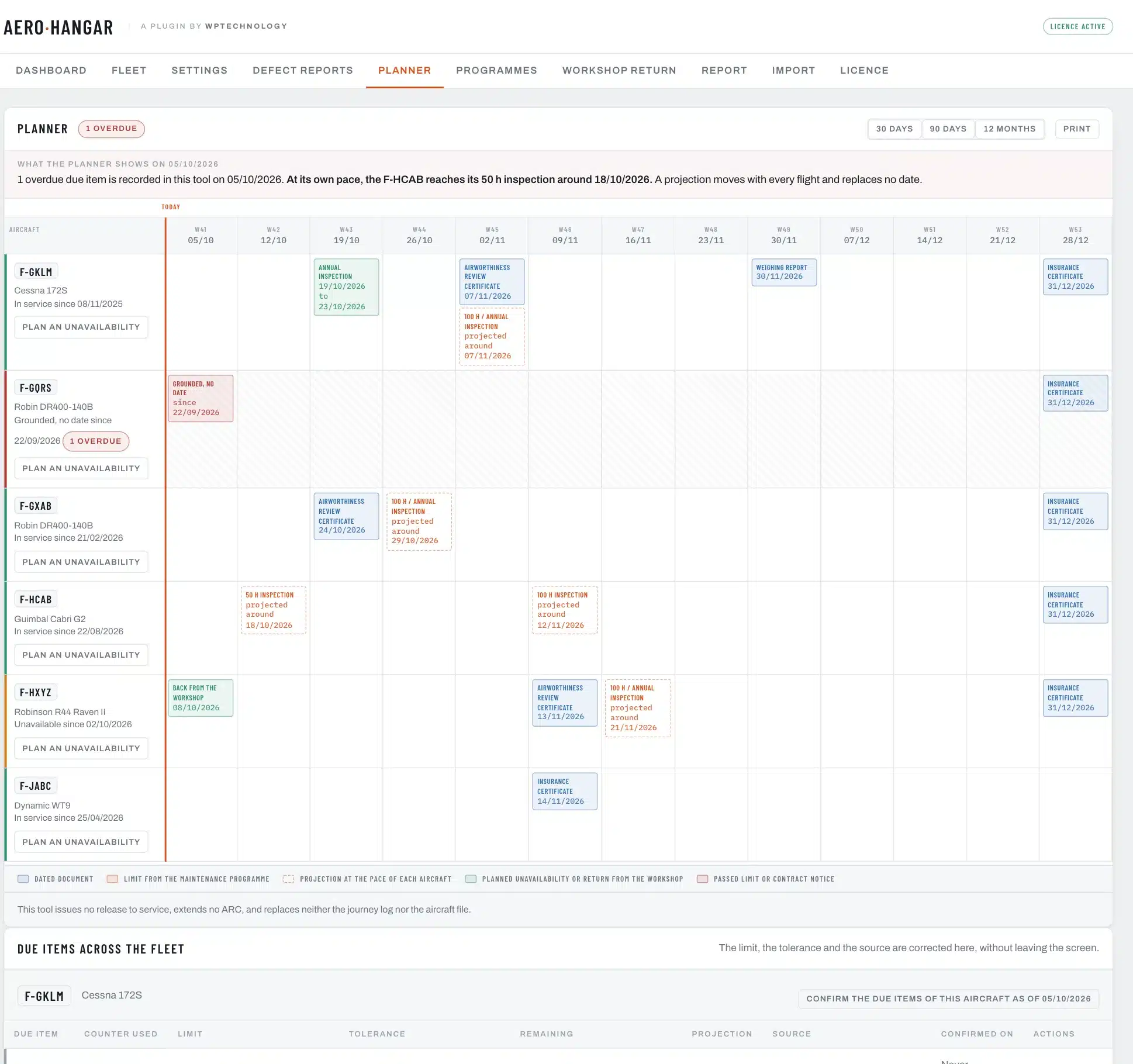
The timeline prints on one A4 landscape sheet, for the workshop and the hangar wall. Under it, the table of the fleet’s due items lets you correct a limit, a tolerance or a source without leaving the screen. The Plan an unavailability button of each line sets an immobilisation ahead.
Workshop return
When an aircraft leaves the workshop, the Workshop return tab writes everything on one page: the visit, its references, the readings of the day, and the due items it clears.
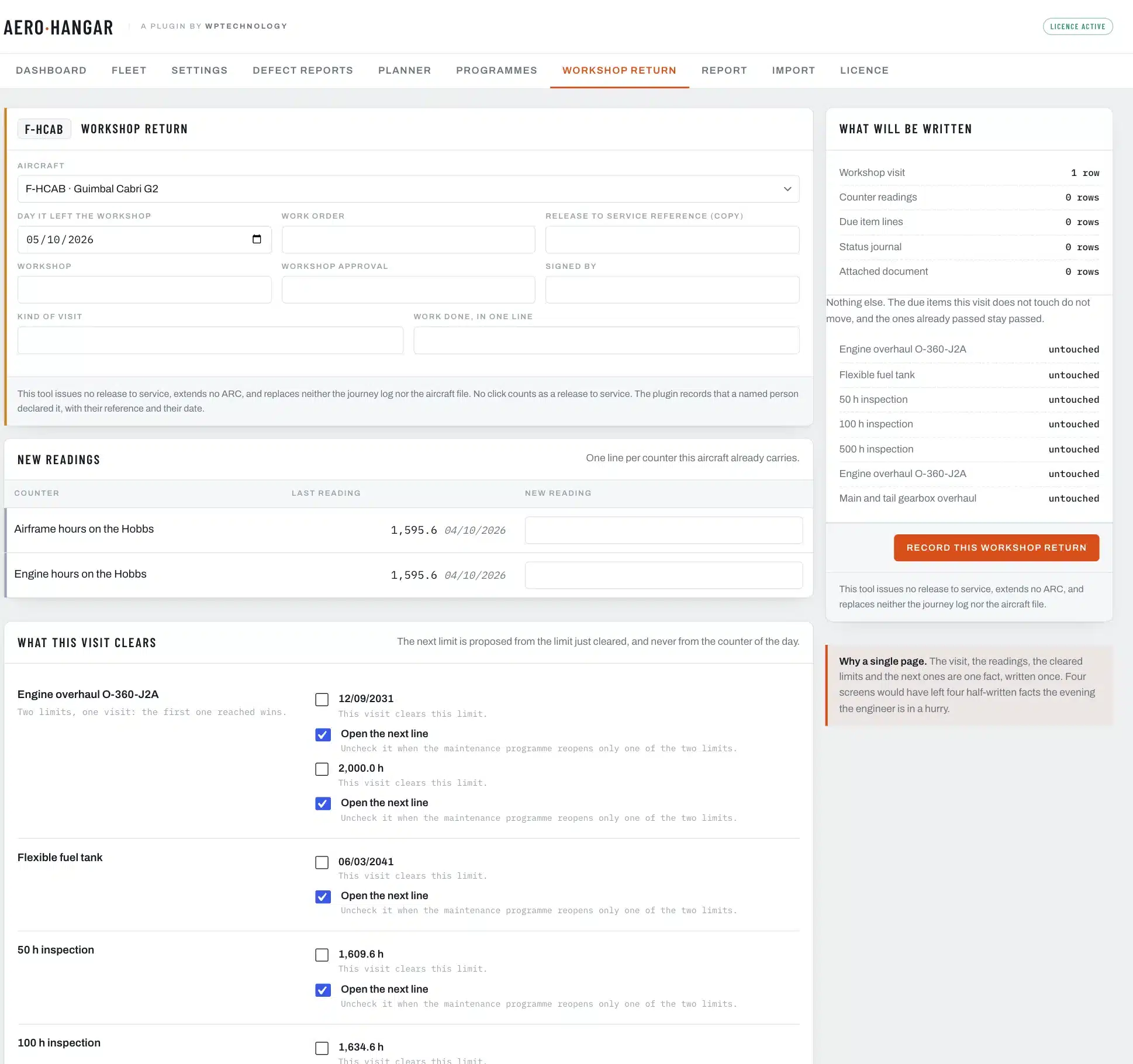
- The day out of the workshop, the work order, the reference of the release to service document (a copy), the workshop, its approval and the person who signed.
- The readings of the day, one line per counter the aircraft already carries.
- What the visit clears: for each limit, a box “this visit clears this limit” and a box “open the next line”, which offers the next limit from the one just cleared.
- The right-hand column says what will be written, line by line, before anything is.
No click is a release to service
The plugin records that a named person issued it, with its reference and its date. It issues no certificate of release to service and extends no ARC.
Maintenance programmes
The Programmes tab keeps the school’s maintenance programmes, type by type: each inspection with what it counts, its interval in hours and in months, and its tolerance. A programme is then applied to one or more aircraft, and creates their due items.
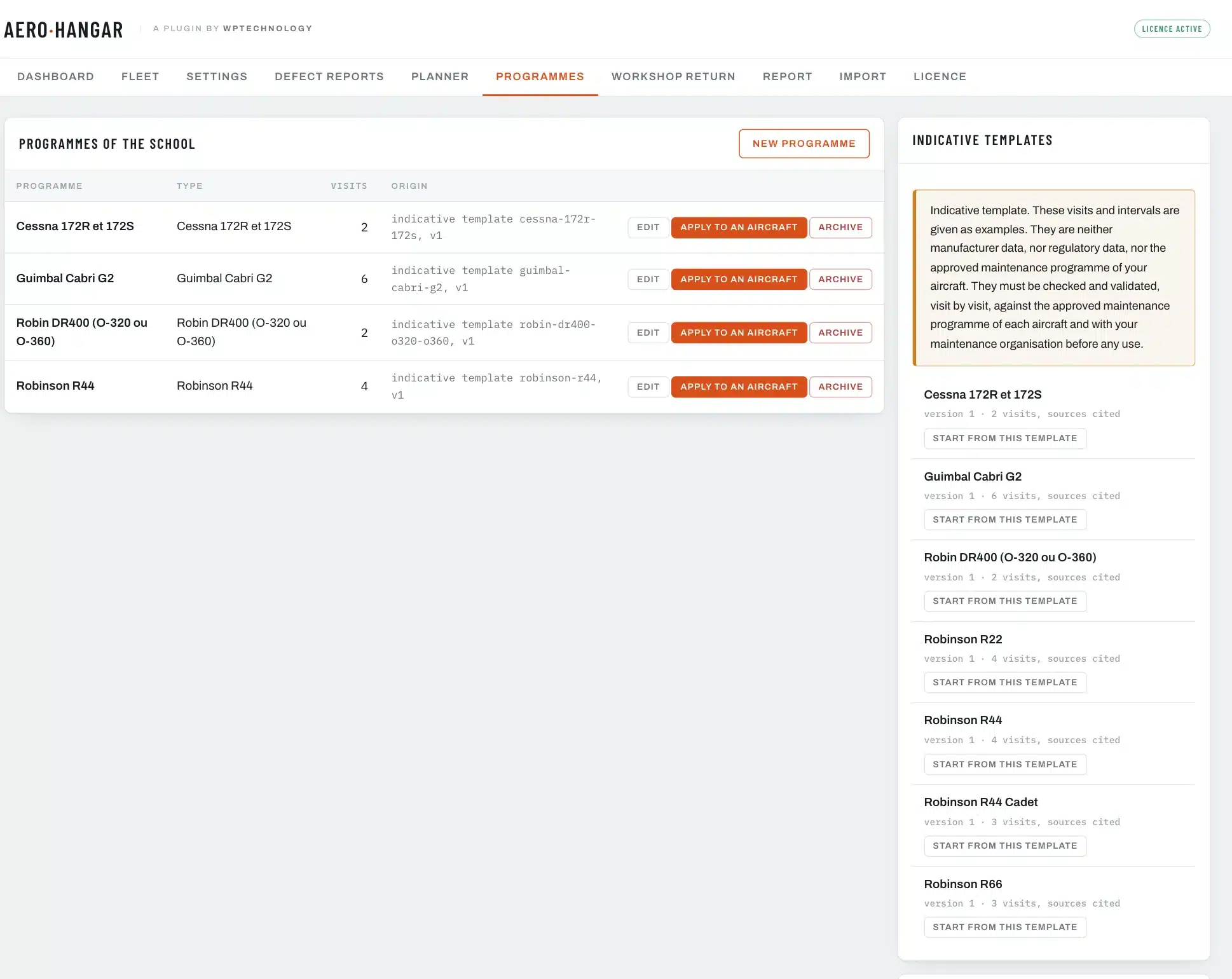
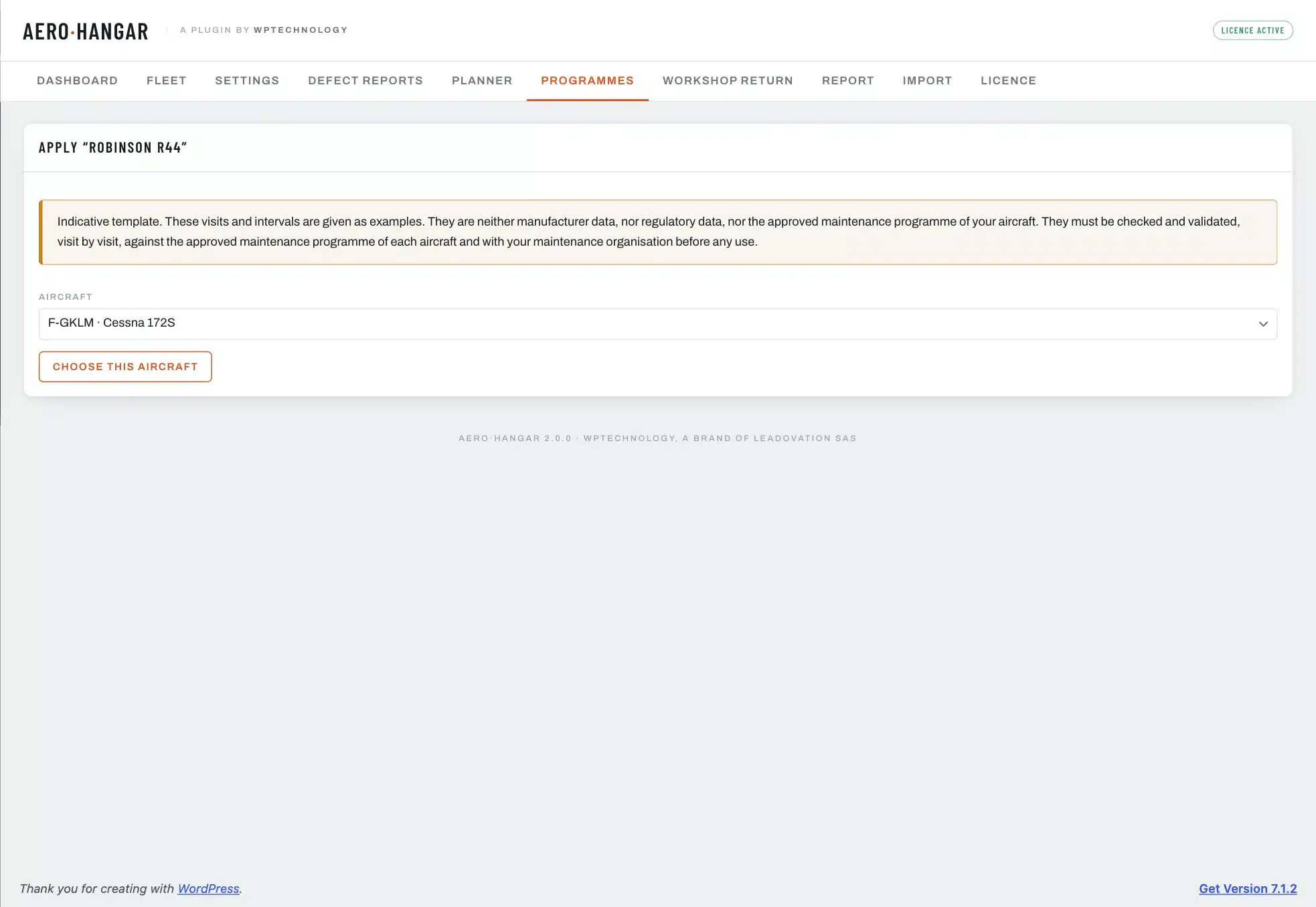
Start from an indicative template
The plugin ships templates for the Robinson R22, R44, R44 Cadet and R66, the Guimbal Cabri G2, the Robin DR400 and the Cessna 172. Each inspection of a template cites the public document its value comes from. Start from this template makes a copy that belongs to the school: it can be renamed, completed and corrected.
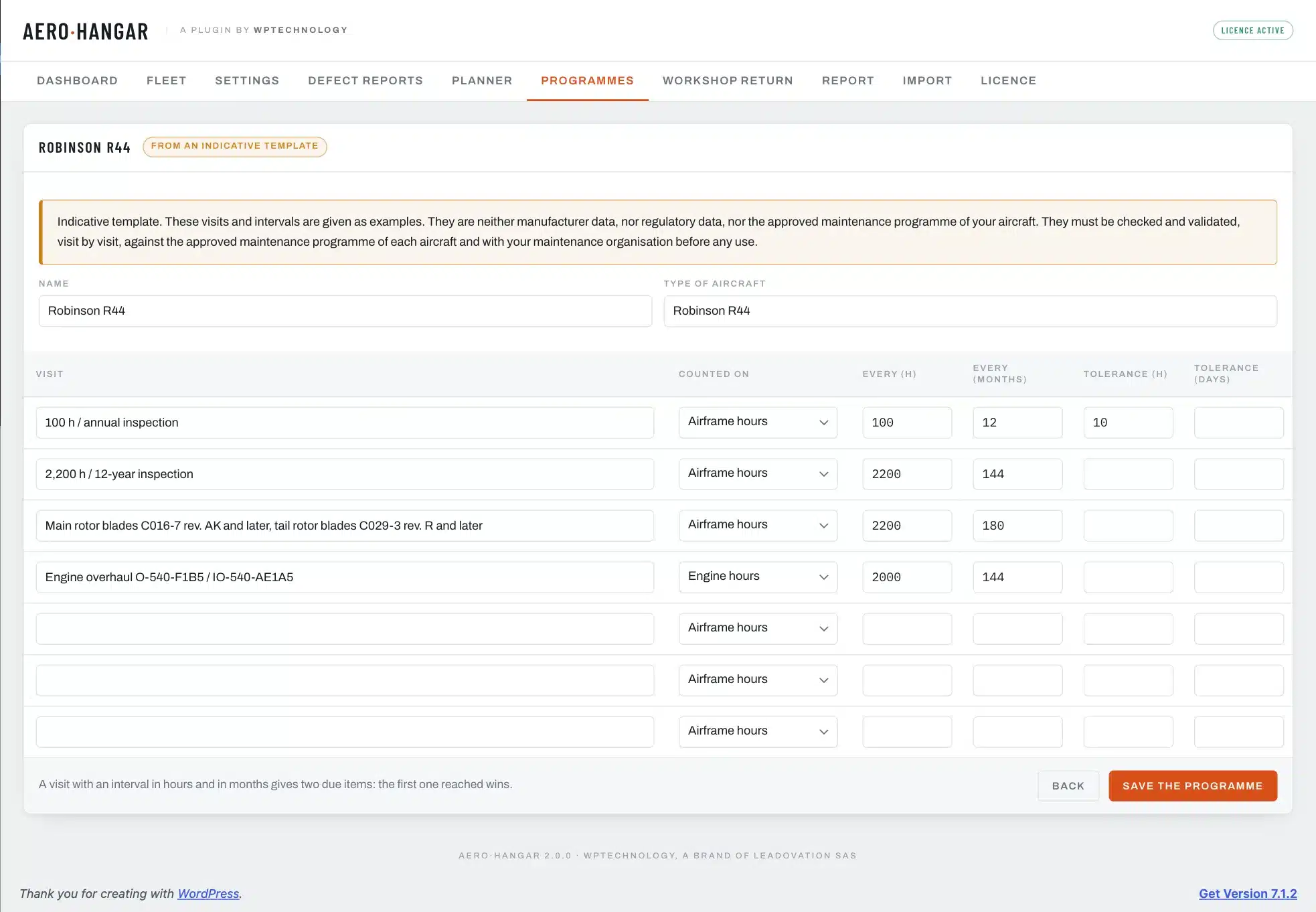
A template is only an example
Its inspections and intervals are neither manufacturer data, nor regulatory data, nor the maintenance programme of your aircraft. They must be checked and validated, inspection by inspection, with your maintenance organisation before any use.
Apply a programme to an aircraft
Apply to an aircraft asks, for each inspection, the date and counter of the last time it was done. No due item is created without the box that says these inspections were checked against the maintenance programme of the aircraft. Applying again replaces the due items of the previous application instead of doubling them, and the record says when the programme has changed since.
The pace of each aircraft
Each record carries a Projection card, under the Counters and due items tab. It sets the pace inspection dates are projected on: the average of the last 30, 90 or 365 days and, if the school imports its bookings, the flights already booked.
A booking counts for its planned flight time, never for the length of the slot. Bookings only bring a date closer over the chosen horizon (fourteen days by default); beyond it, the measured pace takes over again.
Ownership
The Ownership tab keeps the owners of the aircraft, their contracts, its rates over time and its dated home base.
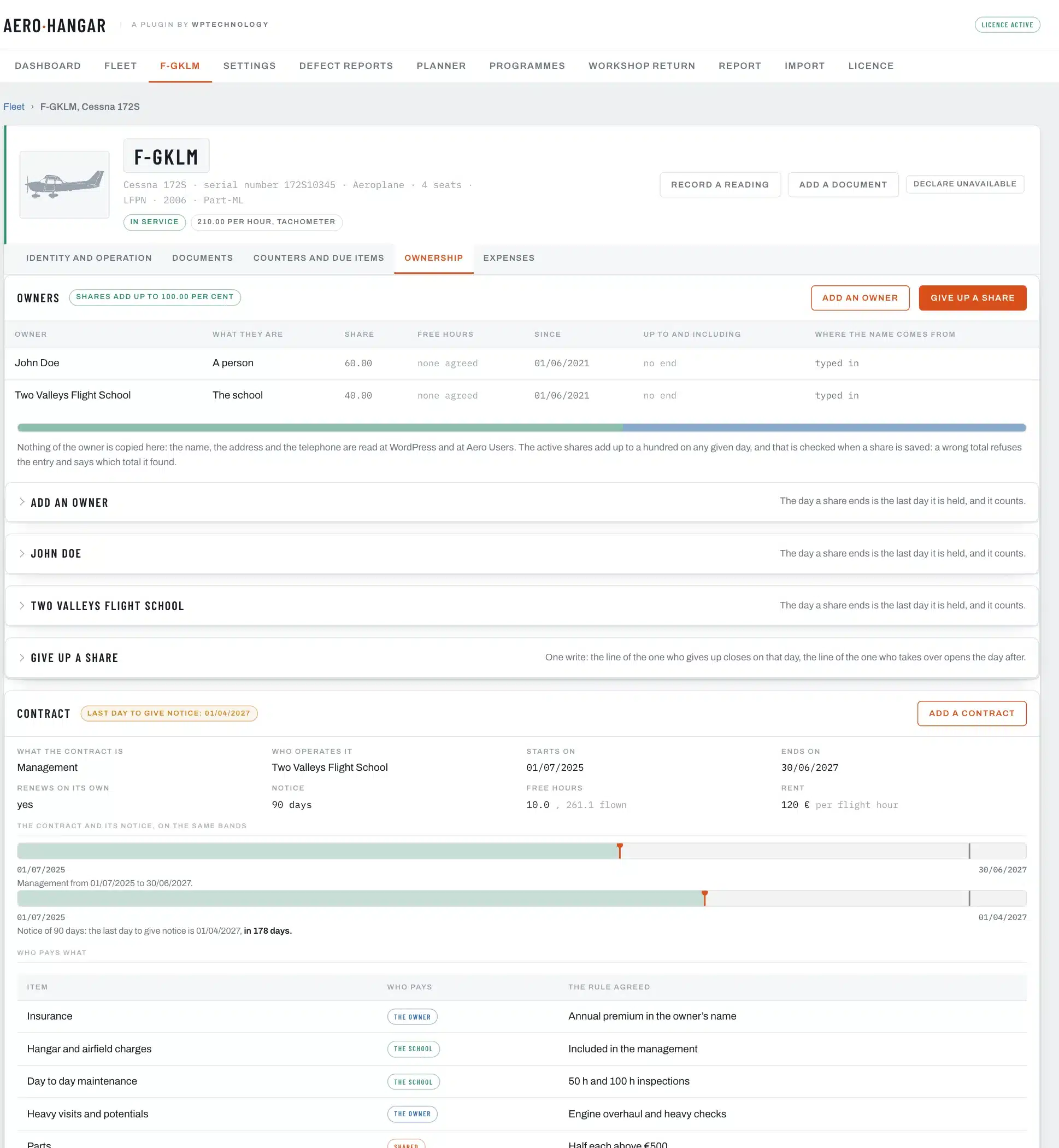
- Owners: the school, a person, a co-ownership or a lessor, each with its share, its free hours and its dates. Active shares make a hundred per cent on any given day; a wrong total refuses the entry.
- Give up a share is written in one go: the line of the one who gives up closes that day, the line of the one who takes over opens the next day.
- The contract: bare-hull lease, provision, management or co-ownership agreement, with who operates, the dates, renewal, notice, free hours and rent. The last day to give notice shows on a band.
- Who pays what: six items (insurance, hangar, line maintenance, heavy maintenance, parts, sundries), each paid by the owner, the operator or both, with the agreed rule.
- Rates keep their history: the report compares the hourly cost with the rate in force over the period.
Importing Aerogest exports
The Import tab reads the flight log (Excel) and the bookings list (CSV) exported from Aerogest. Both files are dropped together.
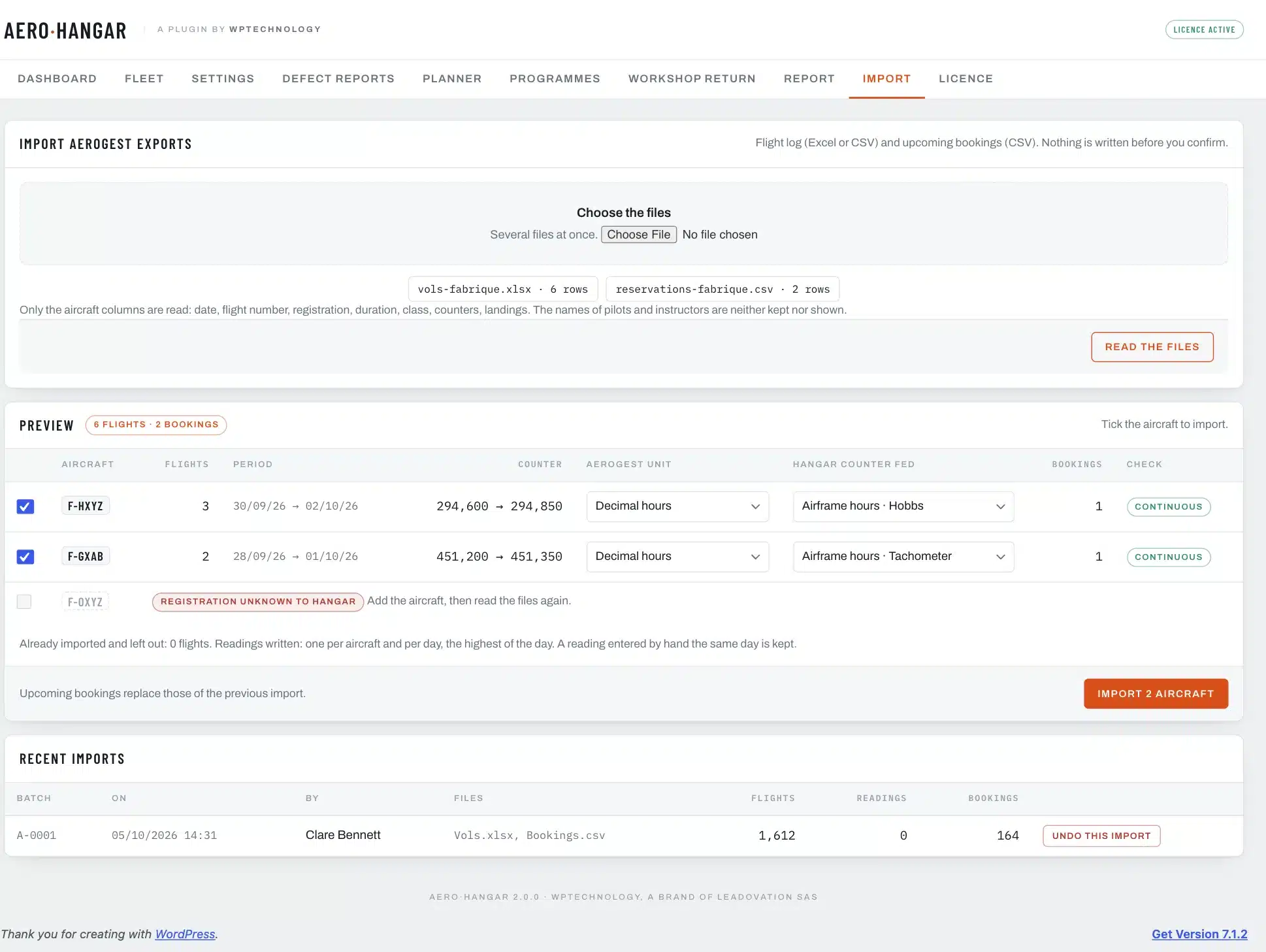
- The preview shows, aircraft by aircraft, what will be written. The unit of the counters (hundredths, tenths, minutes or hours) is guessed from flight durations, and can be corrected.
- An aircraft unknown to the register is named and left aside. A counter break, such as an instrument change, is flagged.
- A flight already known is never written twice. One reading is set per aircraft and per day on the chosen counter.
- Each import can be undone as a whole from the list of recent imports.
- No personal data enters the database: only the columns about the aircraft are kept, never the name of the pilot or of the instructor, nor the destination.
Aerogest only exports the lines shown on screen, 1,000 at most. Show 1,000 lines before exporting: for a busy year, make two exports and drop them together.
The report and cost per hour
The Report tab gives, over the last full month, the last full calendar quarter, the last twelve months or between two dates, one line per aircraft and one line for the fleet.
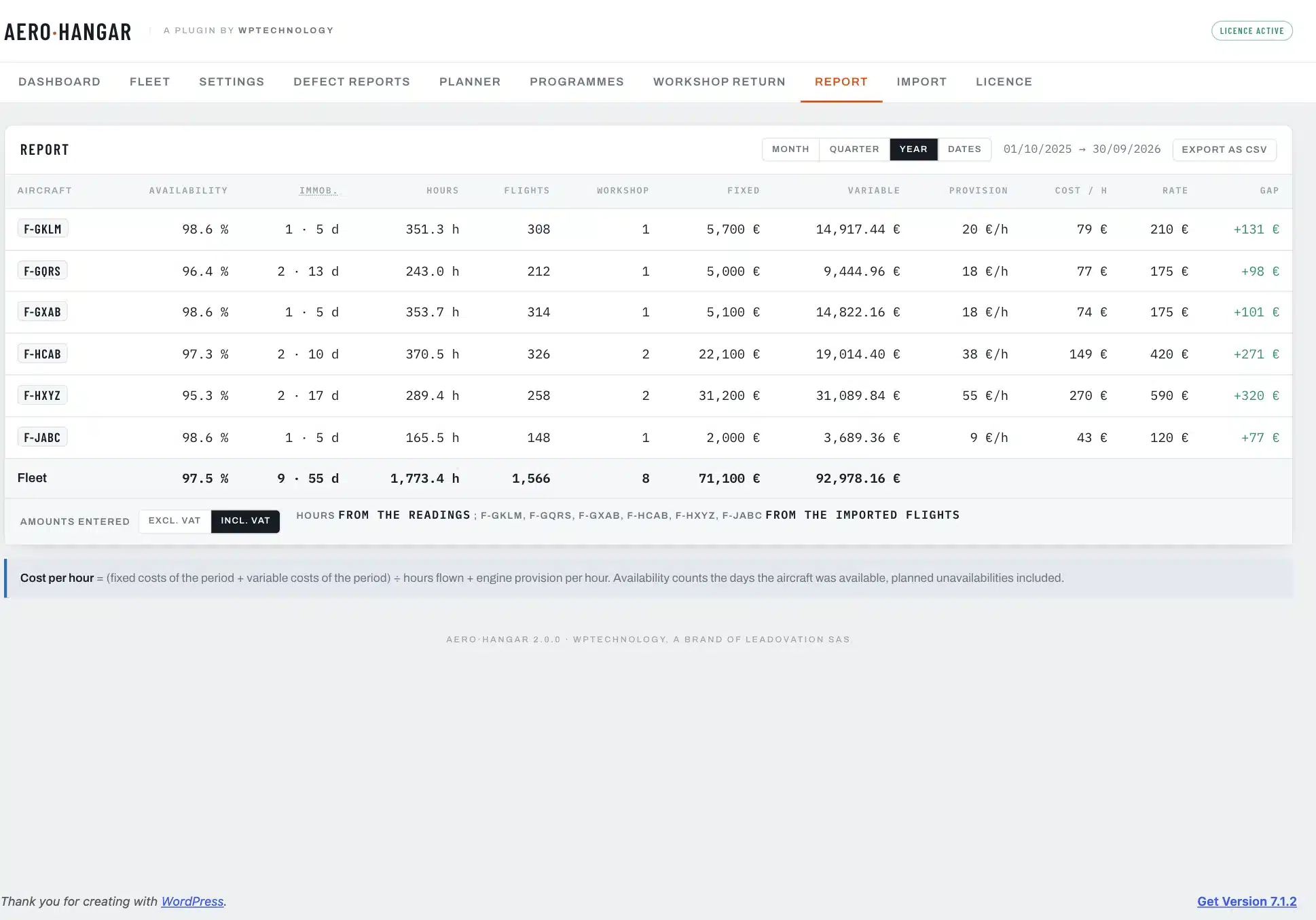
- Availability: the days the aircraft was available over the days of the period, planned unavailability included. Immobilisations are counted in number and in days.
- Hours are read on the readings; when readings are missing and imported flights exist, on the sum of their durations, and the line says so. Readings far from the bounds of the period give their dates.
- Cost per hour = (fixed + variable expenses of the period) ÷ hours flown + engine provision per hour. With no hour flown, the screen says so and does not divide.
- The rate compared is the one in force on the last day of the period, and the gap shows in colour.
- Excluding or including VAT: one setting says how the school enters its amounts, and it is printed at the head of the report and of the export.
- Export as CSV produces a file ready for a spreadsheet.
Expenses
The Expenses tab of the record lists the aircraft’s expenses, with their category, invoice and source.
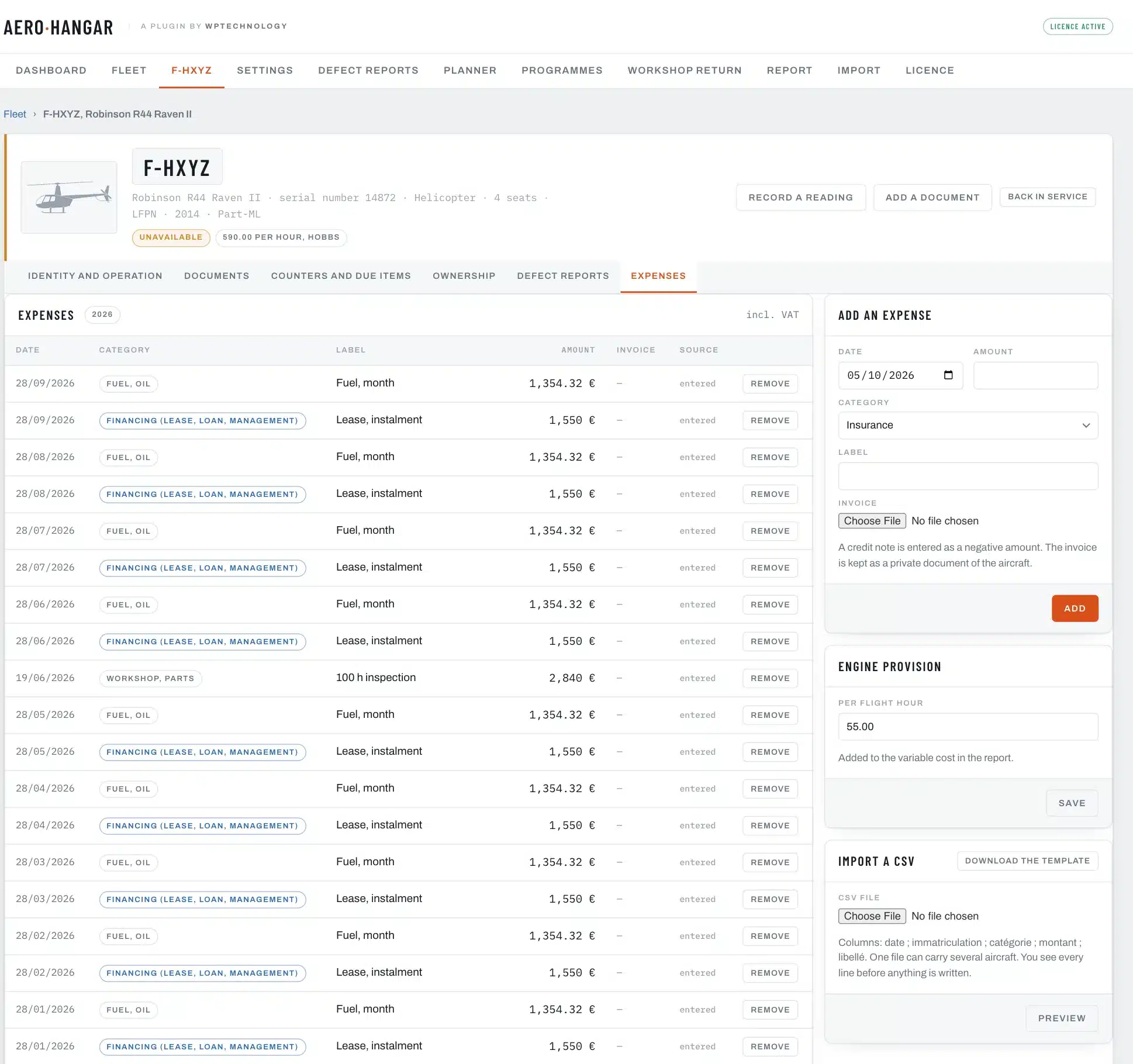
- Seven categories: insurance, financing, parking and hangar, other fixed cost; workshop and parts, fuel and oil, other variable cost.
- A credit note is entered as a negative amount, and is deducted.
- The invoice is kept among the private documents of the aircraft.
- A removed expense stays in the journal.
- The engine provision per hour is added to the variable cost in the report.
- The CSV import reads the columns date, registration, category, amount and label. One file can carry several aircraft. The preview says why each refused line is refused, nothing is written before you confirm, and a batch is undone as a whole. A template file is downloaded from the screen.
Defect reports
The pilot reports a defect from their phone, on leaving the aircraft. The technical manager gets it at once, answers, and makes the aircraft unavailable if needed.
The report page and the QR codes
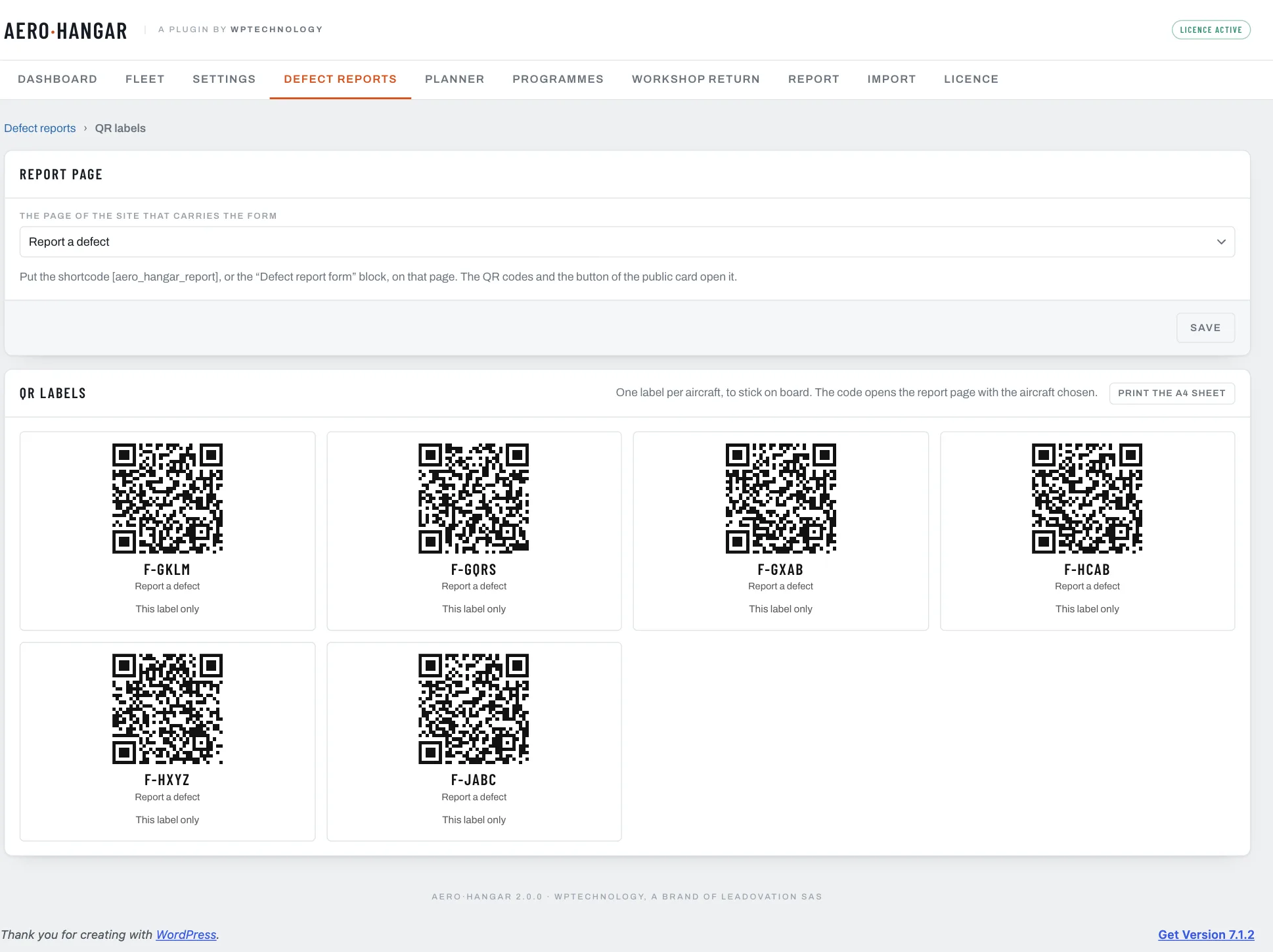
Put the “Defect report form” block or the [aero_hangar_report] shortcode on a page of your site, then choose that page in Defect reports, QR labels. Each aircraft has its QR code, which opens the page with the aircraft chosen. Labels print as an A4 sheet or one at a time, to be stuck on board.
What the pilot sees
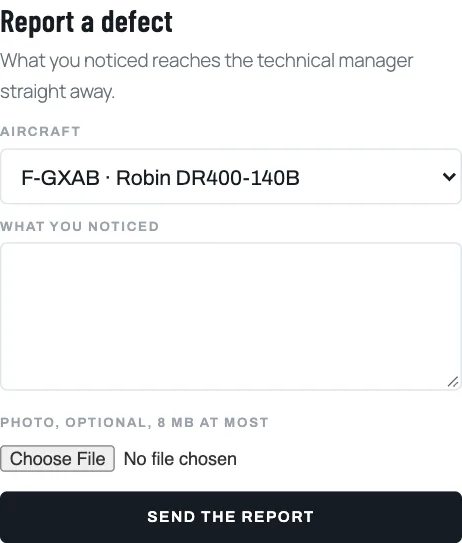
Signing in with an Aero profile is required; a visitor sees the sign-in form, which comes back to the page. Three fields are enough: the aircraft, what was noticed, an optional photo. Under the form, the pilot finds their own reports, their status and the school’s answer.
What the technical manager does
Holders of the “Receive and handle the defect reports” permission get an email for every report, with the photo as a protected link, never as an attachment. The Defect reports tab sorts them by status: open, in progress, closed. From a report, you answer the pilot, change the status, and make the aircraft unavailable: an ordinary unavailability opens with the reason “Defect report no. X”. An unavailability already open is never overwritten. The pilot gets an email at each answer or change of status.
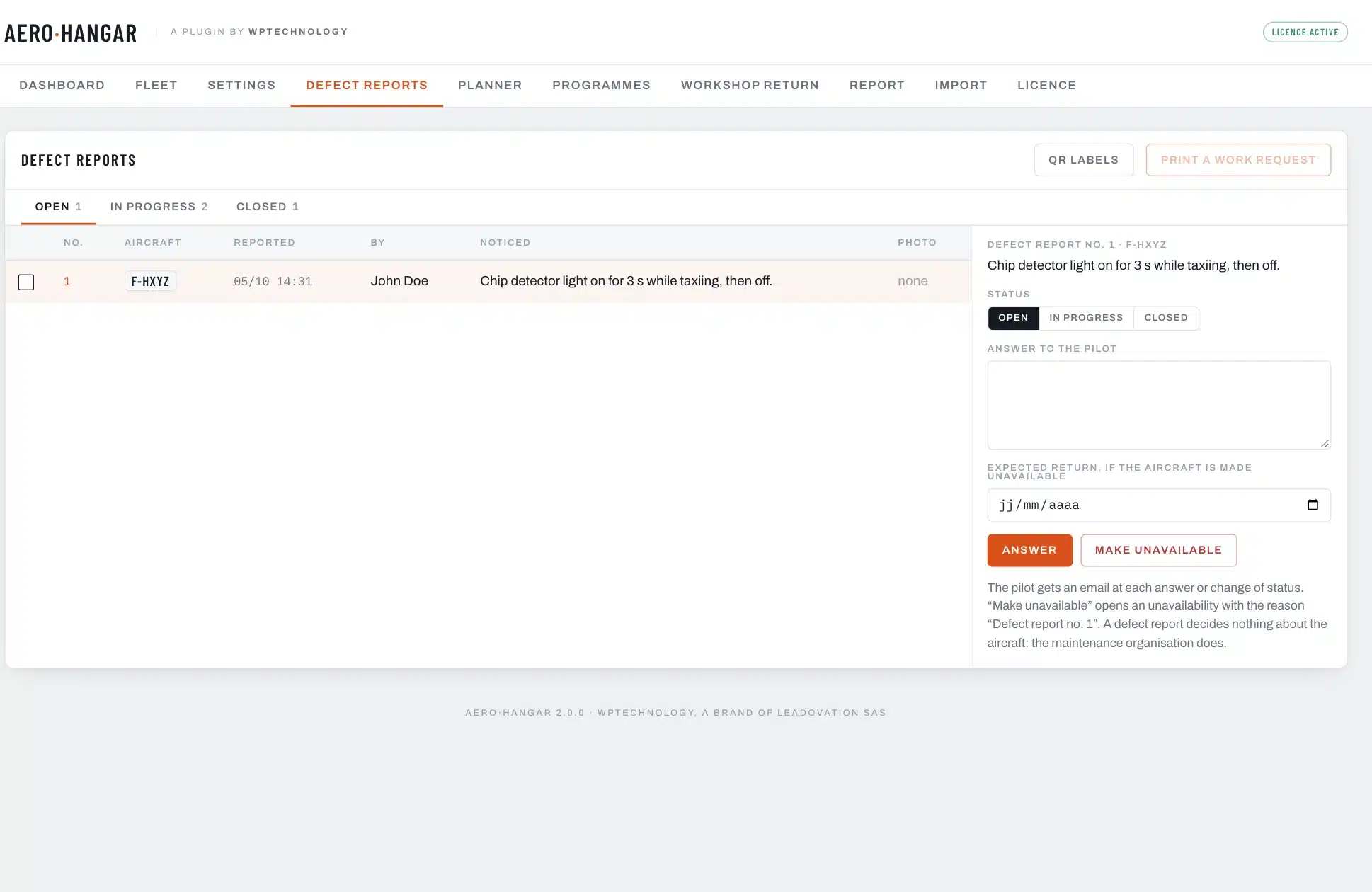
Print a work request: tick one or more reports, and one A4 sheet per aircraft prints, with its identity, its latest readings, the defects reported and a frame for the workshop’s answer.
A defect report decides nothing about the aircraft
It says what a pilot noticed. The maintenance organisation decides.
For developers
The Aero\Hangar\Api facade (version 1.3) gives other plugins a way to read the fleet and to write to it: create or find an aircraft by its external reference, set a reading, a status or a message. Every write goes to the journal with its source. Premium adds flights, bookings, planned unavailability and defect reports from elsewhere; without Premium, those methods answer a clear error. The methods do not check permissions: the caller answers for its user.
Frequently asked questions
Does it replace the journey log or the aircraft file?
No. The journey log is filled in by the crew and travels with the aircraft; the aircraft file belongs to the maintenance organisation. The plugin keeps what the school decided about an aircraft, who decided it and when. It issues no release to service and extends no airworthiness review certificate.
Do I need the other plugins of the range?
No. Aero Hangar works on its own. Installed together, the plugins of the range share their roles and talk to each other: Aero Users keeps the people, Aero Courses the ground school.
What language is the plugin in?
It ships in English and French, and follows the language of each account.
What happens when it is uninstalled?
By default nothing is erased: the register, the Premium data, the documents and the settings stay, and reinstalling finds them again. To erase everything, tick the box of the Uninstalling card in the settings before uninstalling.
The licence has expired: what happens to the data?
It stays in the database. The Premium screens close until renewal, and the free register keeps working.
A question this page does not cover?
Write to us. Useful answers end up here, and help the next school.